
Join our newsletter! - Tips, contests and more. Click here to subscribe!
Download oracle xe from this link.
Follow the below steps to install Oracle XE on Windows:
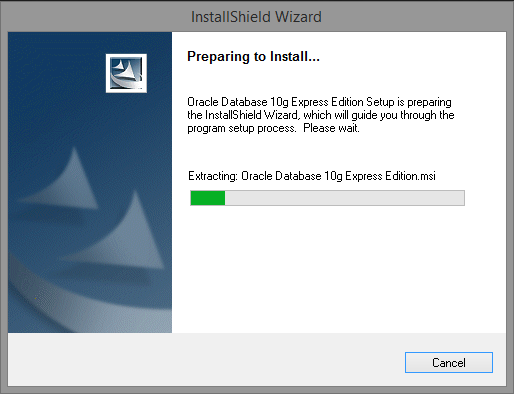
Step – 1: Double click the set up file to start the installation process. You will see the following initialization screen:
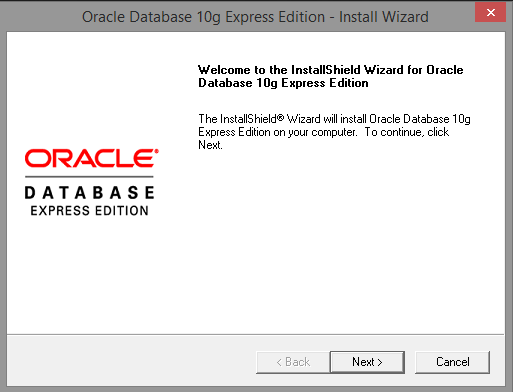
Once the initialization is completed, you will see the following welcome screen. Click Next button to continue.
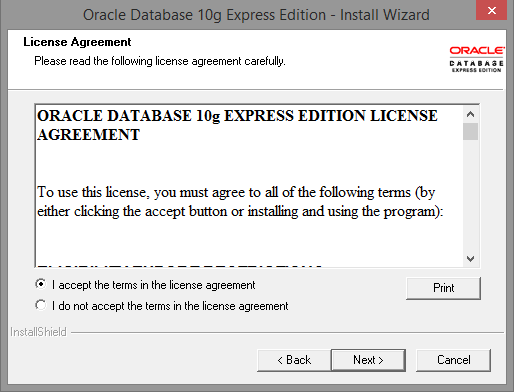
Step – 2: Next you will see a license agreement screen as shown below. Check I accept the terms….. and click on Next button as shown below:
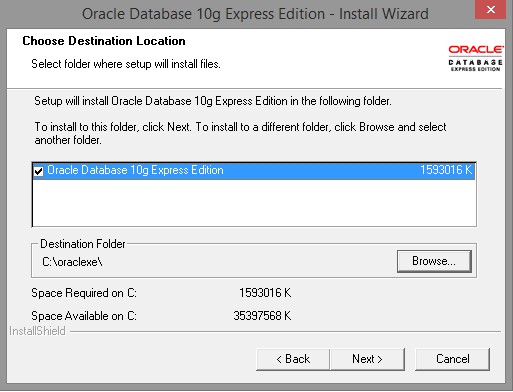
Step – 3: Select the location where you would like to install oracle by clicking the Browse button and then click on Next button.
Step – 4: Set the password for oracle DBMS and click on Next button.
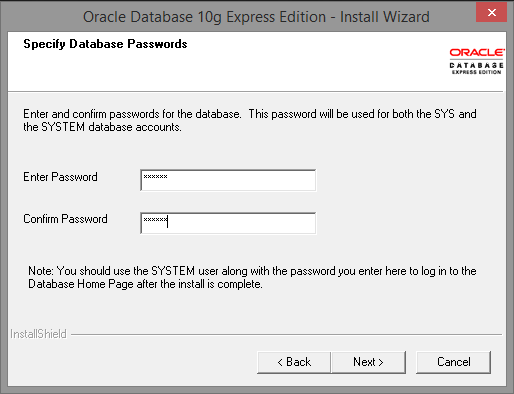
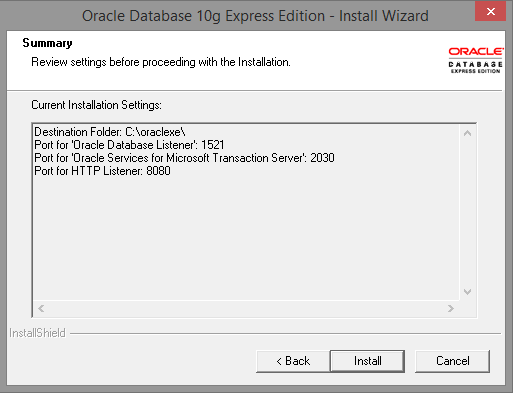
Step – 5: Click Install button to start the installation of oracle xe.
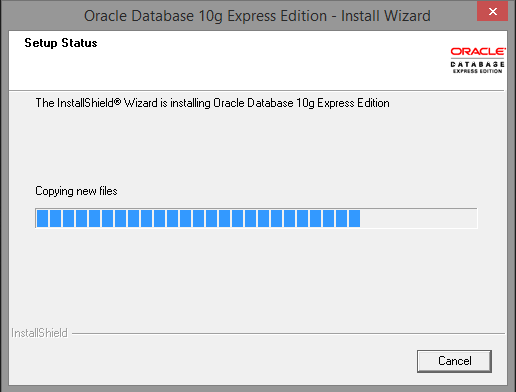
Step – 6: Wait for some time as the installation completes.
Step – 7: Finally click on Finish button to complete the installation process.
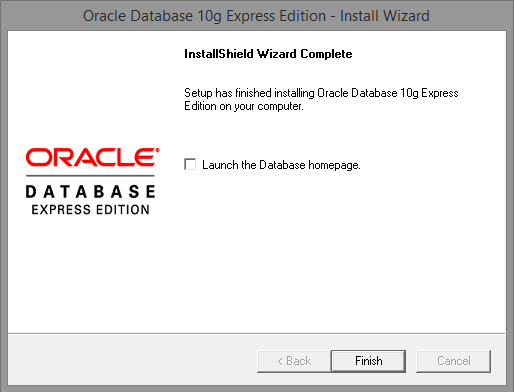
Installation of Oracle XE is completed!
Download Oracle XE installation process in PDF format here.

Mr. P.S.Suryateja, also known as Suryateja Pericherla, is at present a Research Scholar (full-time Ph.D.) in the Dept. of Computer Science & Systems Engineering at Andhra University, Visakhapatnam. Previously worked as an Associate Professor in the Dept. of CSE at Vishnu Institute of Technology, India.
He has 14+ years of teaching experience and is an individual researcher whose research interests are Cloud Computing, Internet of Things, Computer Security, Network Security and Blockchain.
He is a member of professional societies like IEEE, ACM, CSI and ISCA. He published several research papers which are indexed by SCIE, WoS, Scopus, Springer and others.
Leave a Reply