
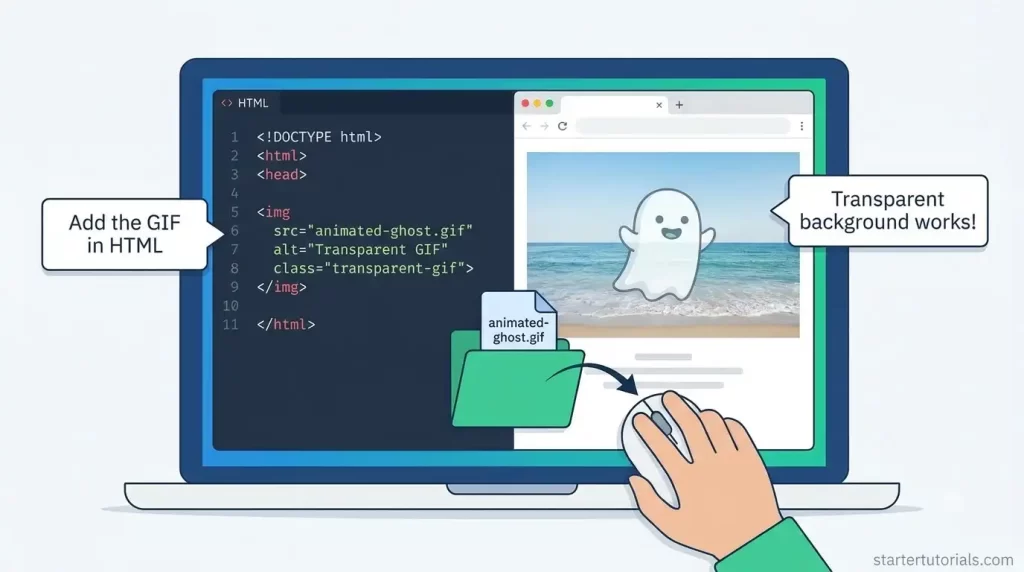
An animated GIF can draw attention to a feature, demonstrate a small interaction, or add a moving character to a web page. But if the GIF includes a solid rectangular background, that rectangle may clash with the page design. A transparent background lets the moving subject appear against the page’s own colors and images.
This beginner-friendly tutorial covers the complete workflow: choosing an existing GIF, removing its background, checking the result, and adding it to a responsive web page with a static alternative for visitors who prefer reduced motion. The examples use ordinary HTML and CSS; no JavaScript framework is required.
Understand what GIF transparency can and cannot do
A GIF can contain multiple frames, allowing an image to animate without a video player. It can also mark a color in a frame as transparent, letting the page background show through those pixels. This is useful for simple illustrations, icons, and short animations.
GIF transparency is limited: a pixel is transparent or opaque, rather than partially transparent. Soft shadows, hair, and motion blur can therefore look rough around the edges when placed over a new color. GIF also uses a limited color palette, so subtle gradients may show visible steps. The result depends on both the original animation and how it is processed.
Before starting, choose a GIF you have permission to edit and publish. A short animation with one clear subject and good contrast between the subject and background is a practical place to begin. Watch the entire loop: objects that overlap or leave the frame can make a clean cutout harder to achieve.
Remove the background from the animated file
The goal is to process the existing animation, not just a screenshot of one frame. One option is AdWorker’s GIF background remover, which accepts animated GIF input and provides a downloadable transparent GIF.
- Upload the existing GIF to the tool.
- Review the available processing options. For a person, you can enable Person subject; leave it off for other subjects. Refine edges is optional and may increase credit usage.
- Check the displayed cost and click Process.
- Download the result when processing finishes.
- Play the downloaded GIF from beginning to end before adding it to a project.
The tool is free to start with limited credits; processing cost depends on the file and selected options. Results vary, so check for missing details and leftover background rather than assuming every frame will be perfect.
Test transparency against two backgrounds
A preview with a white or black background does not necessarily mean the GIF is opaque. Some viewers display their own canvas behind transparent pixels. A simple test is to place the downloaded animation on two contrasting colors in a web page or image editor.
For example, preview it against a light cream background and then a dark gray background. If the surrounding area changes with each background, those pixels are transparent. If the same solid rectangle remains on both, the GIF likely still contains background pixels. Check the entire loop for flickering edges, missing details, and stray colors, especially around hair or fast motion.
When the original background is white or nearly white, a dark preview can reveal pale fringe pixels that are easy to miss on a light canvas. Check the subject’s outline throughout the loop, especially where it moves or overlaps the background.
The following CSS gives you two preview surfaces. Use it with the HTML image in the next section; change the class on the surrounding element from preview-light to preview-dark to compare.
.preview-light { background: #f4efe4; }

.preview-dark { background: #263238; }
If an edge looks jagged on one background, consider using a cleaner source, adjusting the surrounding design, or selecting a format that supports partial transparency when your destination supports it. Changing a page background does not repair missing pixels in the GIF.
Add the GIF to an HTML page
Create a folder named images alongside your HTML file. Place the transparent animation in it as cutout.gif, and save a separate still image as cutout-still.png. The still should show the same subject and work as a meaningful fallback; create it using an image editor that can export an appropriate frame.
<div class="preview-light">

  <picture>

    <source

      srcset="images/cutout-still.png"

      media="(prefers-reduced-motion: reduce)"

    >

    <img

      src="images/cutout.gif"

      alt="A cartoon cat waving"

      width="320"

      height="320"

      class="animated-cutout"

    >

  </picture>

</div>


.animated-cutout {

  display: block;

  max-width: 100%;

  height: auto;

}
The browser normally loads the GIF. When the reduced-motion media query matches, the <picture> element selects the still image instead. The CSS lets the image shrink to fit a narrower container while preserving its proportions. Replace the example width and height with the actual dimensions of your own files, and use the same aspect ratio for the still and animation. Including dimensions helps the browser reserve space before the image loads.
The alt text in the example describes an informative image. Replace it with a concise description of your own image and its purpose. If the animation is purely decorative and adds no information, use alt=”” instead. Do not put essential instructions only inside the animation; they should also be available as page text.
Check the result on the actual page
Open the page in a browser and check the animation against the real background, not only the two test colors. Resize the browser window to check a narrow layout, and confirm that the image does not overlap text or controls. If you use a patterned or photographic background, review the subject’s outline there too.
Enable your operating system or browser’s reduced-motion preference and reload the page. The static image should appear instead of the GIF in browsers that support this media query. If it does not, check the file path, the <source> markup, and whether the setting is active. The fallback helps people who have enabled the preference, but it does not replace a control for everyone. For nonessential animation that starts automatically, lasts more than five seconds, and appears alongside other content, WCAG requires a way to pause, stop, or hide it. A separate visible control can switch the animation to a still image; this example does not implement that control.
Also check file size and loading behavior. A long or detailed GIF can be large, especially on mobile connections. Start with the shortest useful loop and appropriate dimensions, then compare the result at the size where it will appear. For other formats, check whether they support animation and transparency in your target browsers and workflow before switching.
Troubleshooting checklist
- A solid box remains: Compare against two background colors. If the box stays the same, inspect the processed file for leftover background pixels.
- The first frame looks good but later frames do not: Play the full loop and look for changing outlines or objects that move behind the subject.
- The animation is missing: Check the file path and confirm that you saved the animated GIF, not a single-frame image.
- The subject is stretched: Match the HTML dimensions to the image’s actual aspect ratio and keep height: auto in the CSS.
- The still fallback does not appear: Check the reduced-motion setting and the srcset path for the PNG.
- Edges look rough: Test the output against the final page color; GIF transparency cannot represent partially transparent edge pixels.
A transparent GIF is most useful when the cutout, surrounding design, and delivery format are considered together. Start with a clear source, inspect the whole animation, and test the result in the page where visitors will actually see it.

Leave a Reply