
Aim
Write a java program to convert an image in RGB to a grayscale image.
Theory
Color Models
Representing colors as numerical values is a necessary step in many applications. To do this, we use models that are mathematical models that describe ways of mapping colors to a set of numbers. Usually, a color model defines three or four color components that are easily described through a coordinate system. Each color that the model can represent corresponds to a point in this coordinate system.
RGB
The most well-known color model is RGB which stands for Red-Green-Blue. As the name suggests, this model represents colors using individual values for red, green, and blue. The RGB model is used in almost all digital screens throughout the world.
Specifically, a color is defined using three integer values from 0 to 255 for red, green, and blue, where a zero value means dark and a value of 255 means bright. Given the values, the final color is defined when we mix these three basic colors weighted by their values.
If we mix the three colors equally (RGB = (255, 255, 255)), we’ll get white while the absence of all colors (RGB = (0, 0, 0)) means black. Below there is the RGB coordinate system where we can see all the different colors that the model can describe:

Grayscale
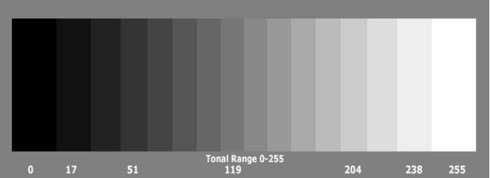
Grayscale is the simplest model since it defines colors using only one component that is lightness. The amount of lightness is described using a value ranging from 0 (black) to 255 (white).
On the one hand, grayscale images convey less information than RGB. However, they are common in image processing because using a grayscale image requires less available space and is faster, especially when we deal with complex computations.
Below, we can see the full range of colors that the grayscale model can describe:
Others
Depending on the use case, there have been numerous proposed models throughout the years. For example, the CMYK model is used in printing and describes colors using values for cyan, magenta, yellow and black. HSL and HSV are two colors used by artists since they’re more aligned with the way human vision perceives a color. The basic components are hue, saturation, and lightness or value, respectively.
Convert RGB to Grayscale
The best method is the luminosity method that successfully solves the problems of other methods.
Based on the aforementioned observations, we should take a weighted average of the components. The contribution of blue to the final value should decrease, and the contribution of green should increase. After some experiments and more in-depth analysis, researchers have concluded in the equation below:
grayscale = 0.3 * R + 0.59 * G + 0.11 * B
Program
import java.awt.*;
import java.awt.image.BufferedImage;
import java.io.*;
import javax.imageio.ImageIO;

public class Driver {

	BufferedImage img;
	int width;
	int height;

	public Driver() {
		try {
			File input = new File("Naruto.jpg");
			img = ImageIO.read(input);
			width = img.getWidth();
			height = img.getHeight();

			for(int i=0; i<height; i++) {
				for (int j=0; j<width; j++) {
					Color c = new Color(img.getRGB(j, i));
					int r = (int)(c.getRed() * 0.299);
					int g = (int)(c.getGreen() * 0.587);
					int b = (int)(c.getBlue() * 0.114);
					Color newcolor = new Color(r+g+b, r+g+b, r+g+b);
					img.setRGB(j, i, newcolor.getRGB());
				}
			}

			File output = new File("GrayNaruto.jpg");
			ImageIO.write(img, "jpg", output);
		}
		catch(Exception e) {  e.printStackTrace();  }
	}

	public static void main(String[] args) {
			Driver obj = new Driver();
	}
}
Input and Output
Naruto.jpg (RGB Image)

GrayNaruto.jpg (Grayscale Image)

Mr. P.S.Suryateja, also known as Suryateja Pericherla, is at present a Research Scholar (full-time Ph.D.) in the Dept. of Computer Science & Systems Engineering at Andhra University, Visakhapatnam. Previously worked as an Associate Professor in the Dept. of CSE at Vishnu Institute of Technology, India.
He has 14+ years of teaching experience and is an individual researcher whose research interests are Cloud Computing, Internet of Things, Computer Security, Network Security and Blockchain.
He is a member of professional societies like IEEE, ACM, CSI and ISCA. He published several research papers which are indexed by SCIE, WoS, Scopus, Springer and others.
Leave a Reply