
Join our newsletter! - Tips, contests and more. Click here to subscribe!
An IP address is like a device’s digital address on the internet. It allows other devices to find it and send it data. For example, when you search for a website, your device queries the DNS to get the IP address of the server where the site is hosted. Then it navigates to that server and downloads the site data required to display it.
In a similar way, your device also has an IP address; the site server needs that IP address to send the website data. However, your device’s IP address is hidden, and the website server uses something known as a public IP address.
Today we will learn what that is and how you can find out yours.
What Is a Public IP Address?
When you get an internet connection, you usually get an access point device to which you connect all your other devices. Your ISP assigns an IP address to this device. This is your “Public IP Address.”
The real IP addresses of your devices are hidden behind the public one. All entities on the internet only see your public IP and use that for sending data to your devices. The access point determines which data goes to which device, and it’s pretty good at that.
The real IP of your connected devices is called the “Private IP Address.” It is only used for internal communication within a local network.
How to Find Your Public IP Address
You do not need any special software to find your public IP address. You can either use the built-in CMD (Windows) or Terminal (Mac/Linux) tools or a free online tool.
In CMD, just enter this command:
nslookup myip.opendns.com. resolver1.opendns.com
In Terminal, you can run any of these commands:
curl -s ifconfig.me

curl -s https://api.ipify.org

wget -qO- ifconfig.me

dig +short myip.opendns.com @resolver1.opendns.com
But that’s all weird. Here’s the easy way to do it.
- Open your browser
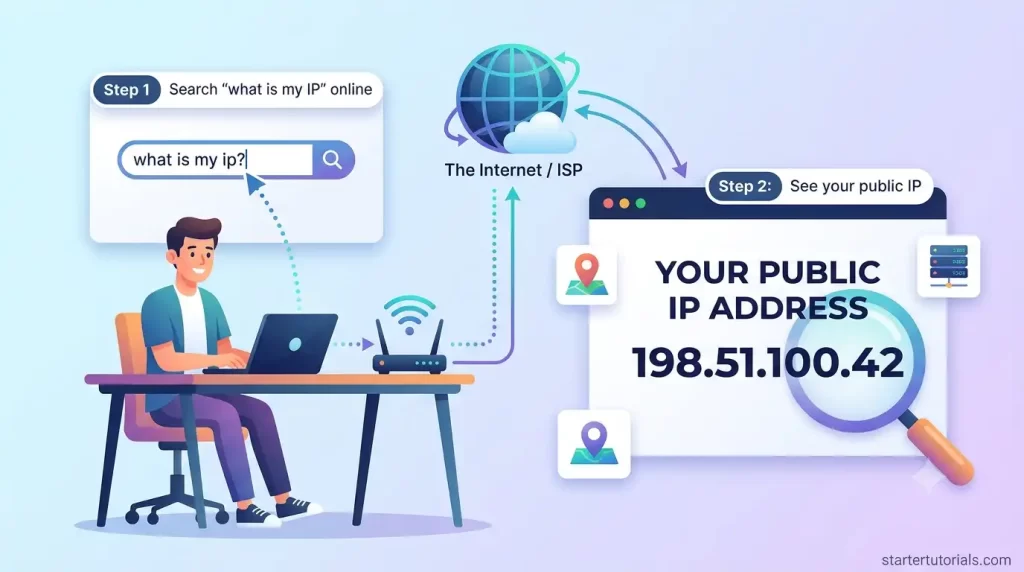
- Open the What is My IP Address tool.
- Wait for the page to load.
- Look for your public IPv4 or IPv6 address.
The tool works in your browser, so you do not need to install anything. You can also use it on a phone, tablet, or computer.
How to Check Your IP Address Location
Your IP address can provide a lot of information about you. However, you can’t find this information without a tool. You have to use an IP lookup tool instead.
Go online, search for an IP lookup tool, then enter your public IP address. You will typically find the following information about it:
- Country and region
- City or nearby area
- Internet Service Provider (ISP)
- Network owner and ASN
- Approximate latitude and longitude
Websites and marketers use this information to create a profile about you and do targeted marketing and stuff.
Why Does Your Public IP Address Change?
Public IP addresses on home networks are typically “dynamic,” i.e., they change whenever your router restarts, power cycles, or after a set period of time.
This happens because of NAT. Because of NAT, ISPs usually keep a pool of available public IP addresses that they use and reuse whenever they get freed up.
Home networks get IPs from this pool, which is why your public IP address changes.
Another reason is VPNs or Proxies. If you have one set up, then whenever you turn it on, your public IP will change.
To prevent your public IP from changing, you can use a static IP instead. This usually costs a bit more in your internet subscription, but your public IP remains unchanged. This is useful for when you want to host a website or a server on your home PC.
Can Someone Track You Through Your Public IP?
Yes, it is entirely possible to track you in a limited capacity just based on your IP address. For example, they can learn your general location, which ISP you use, etc.
They can’t get your exact address or any personally identifying information (PII), but they can pair the information with other clues to know more about you.
You can avoid this kind of tracking by using a VPN. VPNs encrypt your traffic and route it through a different server that masks your public IP address. So, tools and websites see a different IP that is not tied to you.
You should also avoid sharing personal details on untrusted websites and keep your devices updated. This helps protect your privacy.
Final Thoughts
Checking your public IP address is a simple way to learn more about your internet connection. It can help you find network details, fix connection issues, and understand what websites can see.
An online IP checker can show your current public address, while an IP lookup tool can provide details about its location and internet provider. Both are easy to use and take only a few seconds.

Leave a Reply