
With AI tools and LLMs (Large Language Models) like Gemini, ChatGPT, Claude, Grok, etc., becoming more and more popular, websites are seeing an increase in traffic from them. Website owners and SEO agencies might want to know how to track traffic from these AI tools in GA4 (Google Analytics 4).

GA4 already tracks the traffic coming from the AI tools and LLMs. The default reports in GA4 just hide this data under Referral channel from the user. We will see two ways to check the traffic from AI tools.
Steps to track AI tools traffic separately in GA4
1. Open GA4, open Traffic acquisition: Sessions report under the Acquisition tab as shown in the image below:

2. On the right-hand side, scroll down, and change the Session primary channel group in the drop down to Session source / medium as shown in the image below:
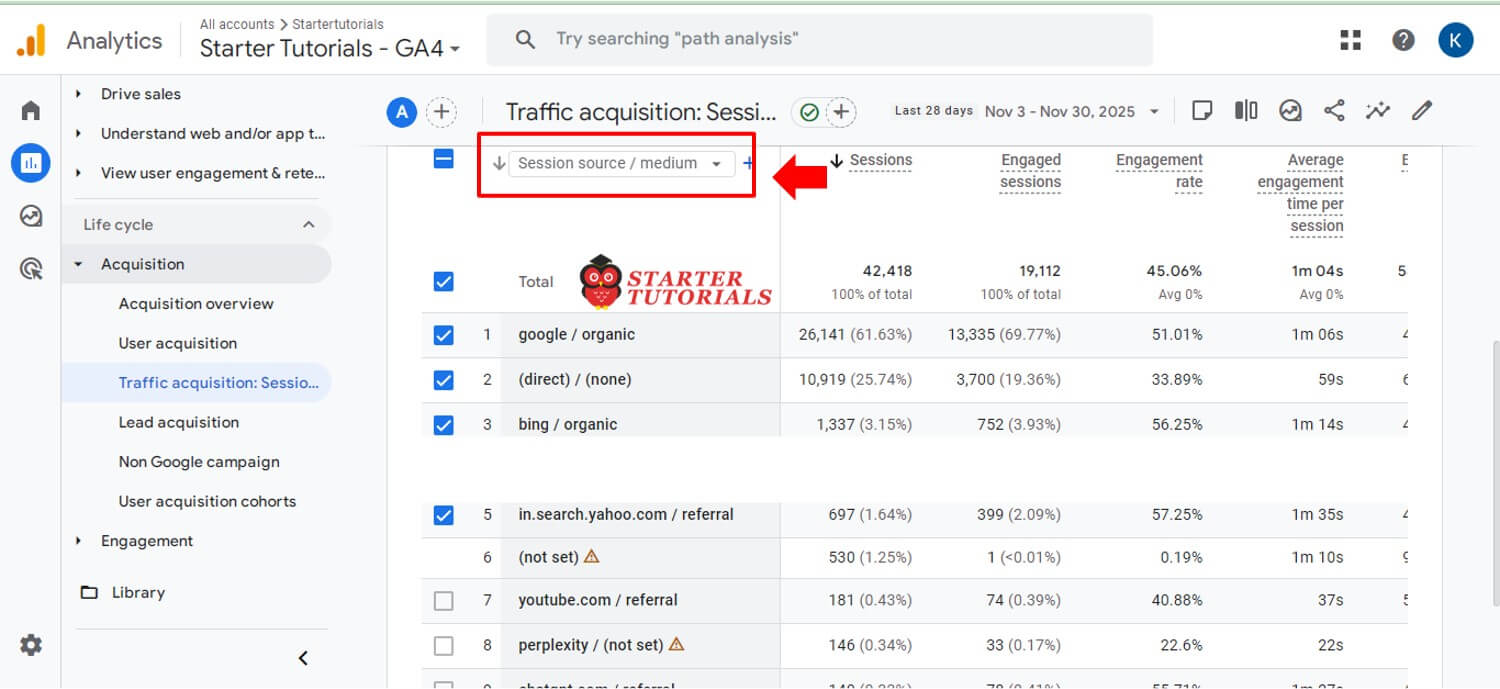
3. Now, you can see AI tools and LLMs traffic in the data display as shown in the image below:

Tip: By default, GA4 displays only 10 rows of data. You can see more rows by changing the Rows per page value from 10 to another higher value as shown in the image below:
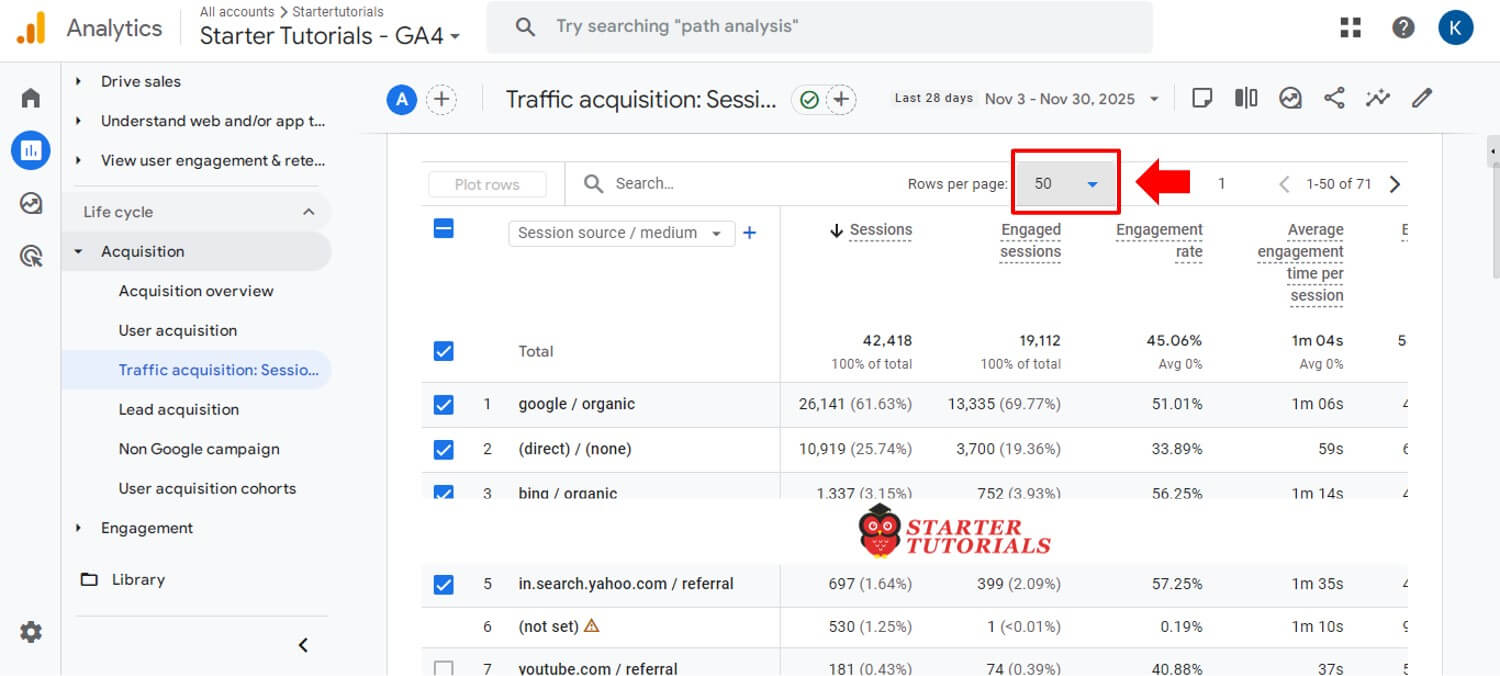
So, we have seen how to traffic from each AI tool or LLM separately. Now, let’s see how to see the traffic from these tools as a group.
Steps to track AI tools and LLMs as a group in GA4
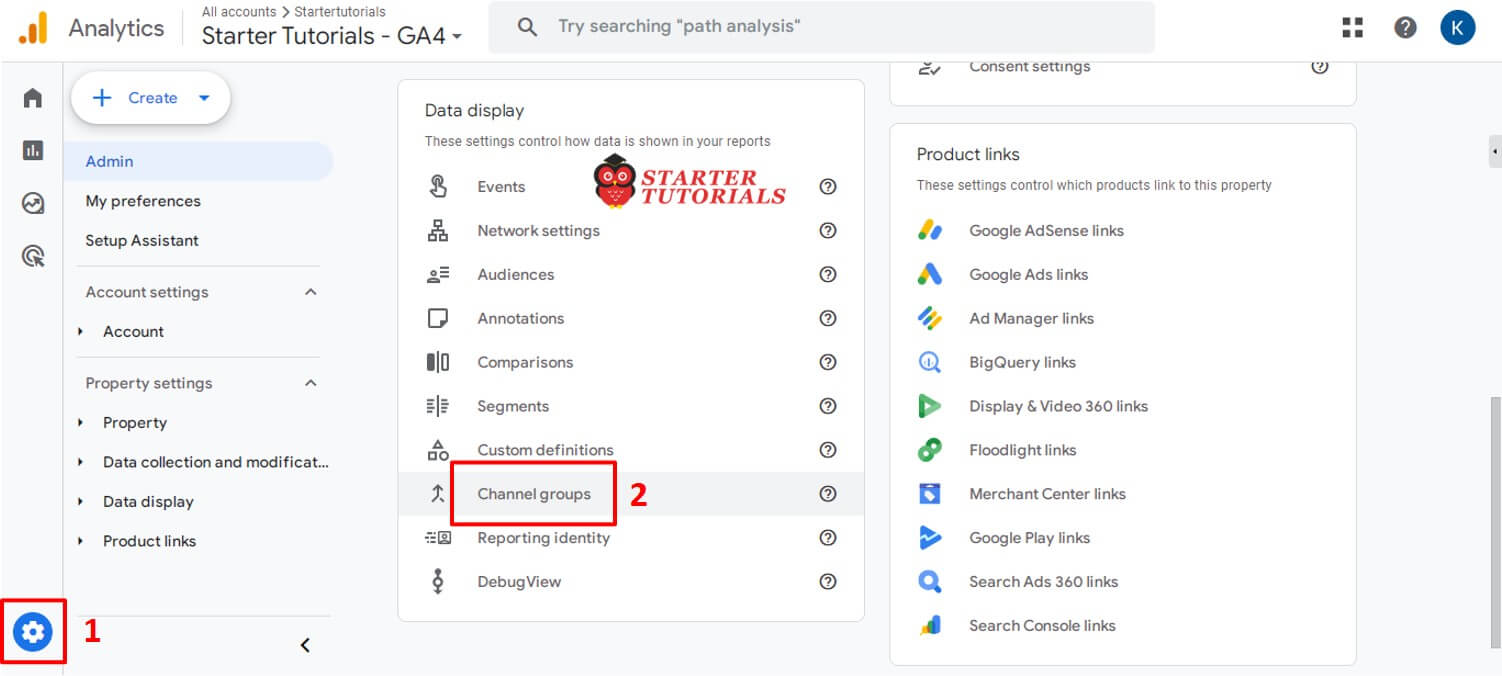
1. Click on the gear icon in GA4 and on the right-hand side, scroll down, and select Channel groups under the Data display category as shown in the image below:
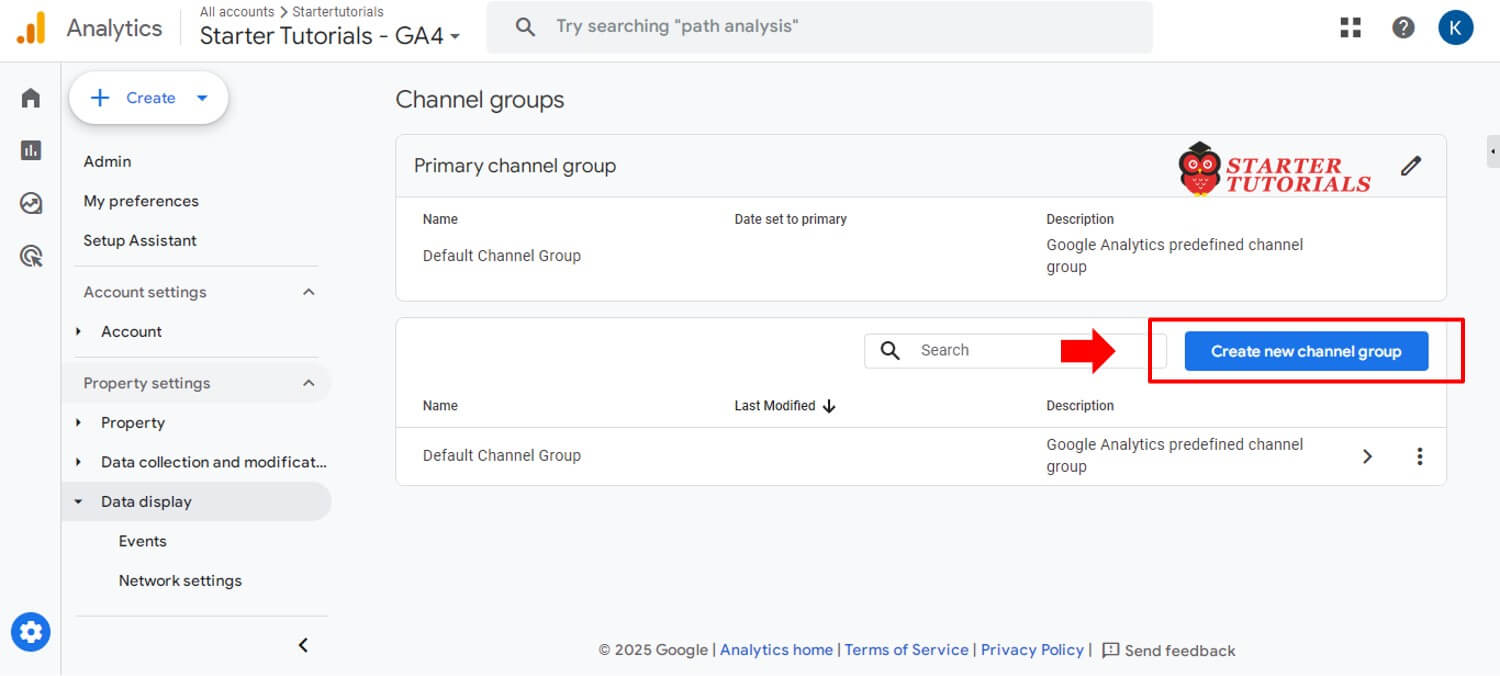
2. Click on Create new channel group as shown in the image below:
3. Give some Group name. For example, Custom and then click on Add new channel.
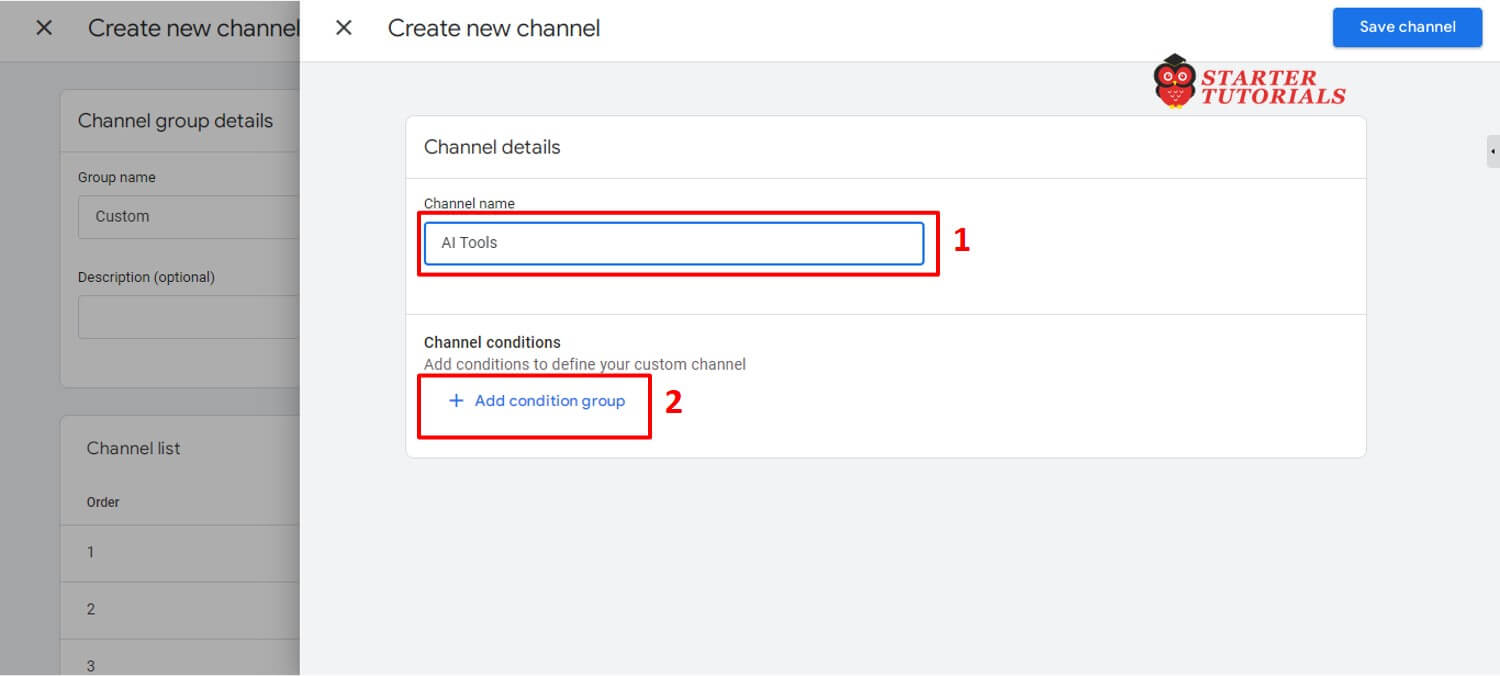
4. In the Channel details screen, give some value to the Channel name field. For example, let’s give it as AI Tools. Click on Add condition group as shown in the image below:
5. Select Source in the drop down, click on Add a condition. Under the conditions, select matches regex and paste the following regex string and click on Apply.
^(?:(?:.*chatgpt.*)|Claude\.ai|quillbot\.com|openai\.com|blackbox\.ai|perplexity(?:\.ai)?|copy\.ai|jasper\.ai|copilot\.microsoft\.com|gemini\.google\.com|(?:\w+\.)?mistral\.ai|(?:\w+\.)?deepseek\.com)$
Tip: You can add more AI tools or LLMs in the above regex string to show in the report.
6. Click Save channel button at the top.
7. Before we can save this channel group, we need to reorder our channels to ensure that this new AI Tools traffic doesn’t end up in other channels.
Click Reorder button that is next to the Add new channel button as shown in the image below:

8. Scroll down to the bottom, click on the handles and drag up the AI Tools group and place it just above the Referral group as shown in the image below:

9. Click on Apply and then finally click on Save Group button. You can now see your Custom group in the list.
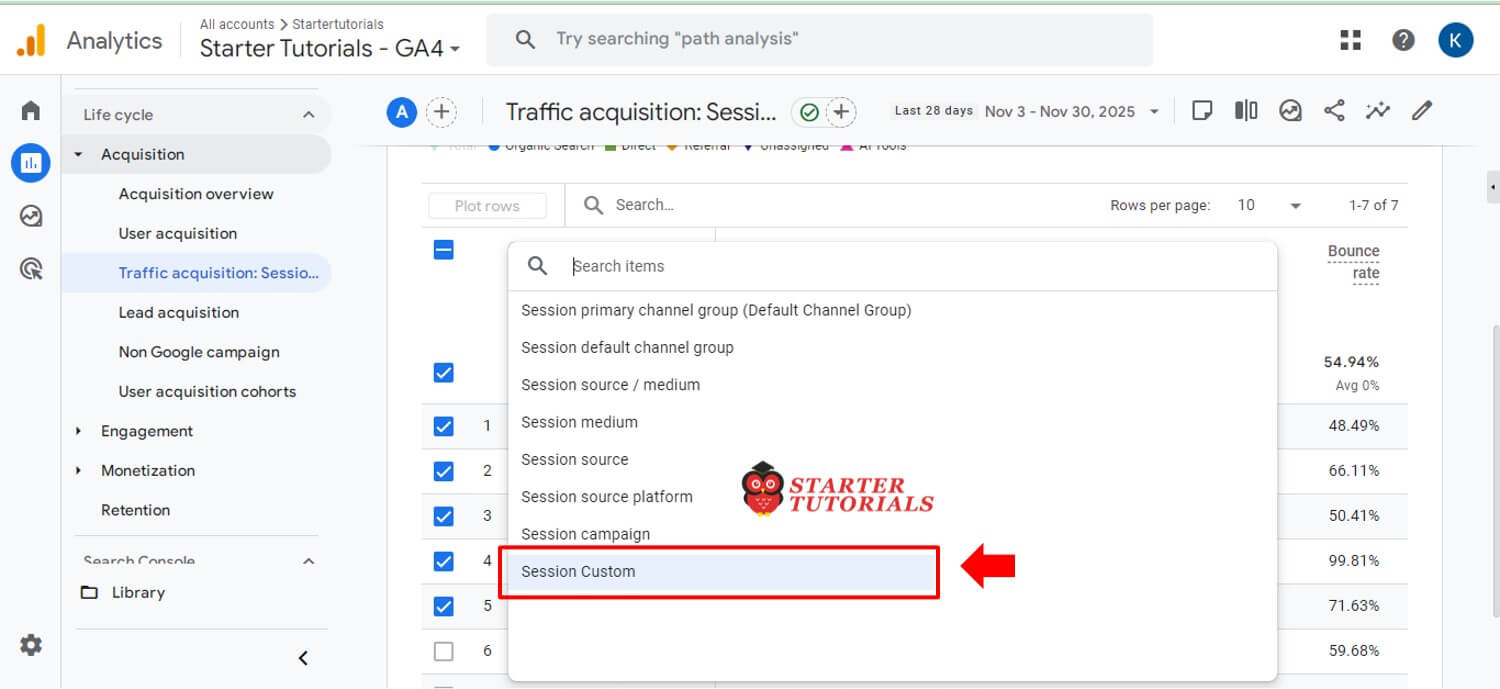
10. Now, you can go to the Traffic acquisition: Sessions report under the Acquisition tab and change the value in the drop down to Session Custom as shown in the image below:
11. Now you should see if you already have website traffic from AI tools as shown in the image below:

Let me know in the comments if this article has helped you or if you have any other suggestions or addons.
References

Mr. P.S.Suryateja, also known as Suryateja Pericherla, is at present a Research Scholar (full-time Ph.D.) in the Dept. of Computer Science & Systems Engineering at Andhra University, Visakhapatnam. Previously worked as an Associate Professor in the Dept. of CSE at Vishnu Institute of Technology, India.
He has 14+ years of teaching experience and is an individual researcher whose research interests are Cloud Computing, Internet of Things, Computer Security, Network Security and Blockchain.
He is a member of professional societies like IEEE, ACM, CSI and ISCA. He published several research papers which are indexed by SCIE, WoS, Scopus, Springer and others.
One thing that’s easy to miss: GA4 treats these as referral traffic, so if you already filter out referrals, you might never see them. We also found that the regex approach is fragile when new AI tools pop up weekly — our setup relies on the source/medium field instead, which catches tools GA4 already labels without maintaining a regex list.