
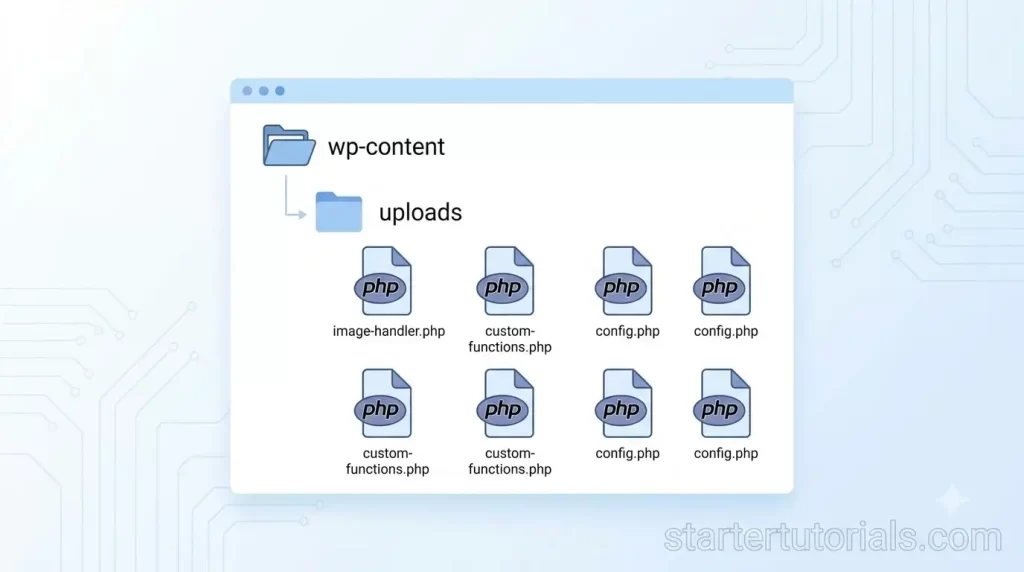
PHP files do not belong in uploads
If you have done a Web Technologies lab, you already know the pattern: HTML form → move_uploaded_file() → file lands in a folder the web server can read.
WordPress does the same thing. Media goes in wp-content/uploads/ . Images are fine there. PHP is not.
Bots do not care that your site is a college project, a portfolio, or a cheap freelance job for a local shop. If it is on the public internet, they scan it. A leftover File Manager plugin or a PHP file in uploads is enough.
This is a check you can run yourself, the same way you debug a PHP lab program.
How WordPress stores uploads
Default layout:
wp-content/uploads/2026/09/photo.jpg
Year/month folders. The web server serves those files directly. It does not send them through WordPress PHP first.
So:
| File in uploads | What Apache/Nginx does |
|---|---|
photo.jpg | Serves the image |
shell.php | Runs PHP if the server is allowed to |
That is the whole trick. The homepage can look normal. Contact form works. Meanwhile wp-content/uploads/cache/x.php is sending spam or opening a file manager for whoever knows the URL.
Lab check 1 — list PHP files in uploads
SSH or the hosting file manager, from the site root:
find wp-content/uploads -name "*.php" -o -name "*.phtml" -o -name "*.phar"
Expected result: nothing.
If you see wp-content/uploads/2024/11/wp-tmp.php or a random one-letter filename, that is not a WordPress feature. WordPress core does not put PHP in uploads.
On shared hosting without SSH, open File Manager → wp-content/uploads → search .php .
Lab check 2 — who can execute PHP there
Many hosts allow PHP in every folder. You want uploads to serve files, not run code.
Apache, file wp-content/uploads/.htaccess :
<FilesMatch "\.(php|phtml|phar)$">
  Require all denied
</FilesMatch>
Nginx (the host would add this; you cannot always do it yourself):
location ~* /wp-content/uploads/.*\.(php|phtml)$ {
    deny all;
}
If you cannot add that, the find/search in check 1 matters more. You are looking by hand because the server will happily run whatever landed there.
Lab check 3 — leftover admin tools
Students and cheap freelancers install a file manager “just for this week,” then forget it. Attackers love that. Same class of problem as leaving phpinfo.php in a lab folder.
In wp-content/plugins/, look for names you did not choose:
- File Manager (and clones)
- Adminer /
adminer.phpin the web root - Random folders with a single
index.php
If you did not install it, treat it as an emergency. Disable/delete it, then assume someone already used it. Changing the admin password after that is not optional.
Lab check 4 — the default admin user
WordPress used to create a user named admin . Bots still try it.
In phpMyAdmin or MySQL:
SELECT ID, user_login, user_email FROM wp_users;(If your table prefix is not wp_ , use that prefix.)
You want a real name/email, not admin . You also want to know if a second administrator appeared that you did not create.
What “the site looks fine” actually means
PHP malware often does not deface the homepage. Typical first signs:
- Host says mail is blocked / spam from your domain
- Google Search Console: “this site may be hacked”
- Plugins you do not remember installing
- Site slow for no theme reason
By then it has usually been running for a while. A scan that only checks the homepage will miss a PHP file in uploads.
If the site is already sending spam or Google has flagged it, that is past a lab fix. You need a real WordPress malware cleanup — find the backdoor, remove it, then close the hole (file manager, uploads PHP, leftover admin). Restoring a backup that already contains shell.php just puts the same file back.
Quick checklist (do this before you hand a project to a client)
find wp-content/uploads -name "*.php"returns empty- No File Manager / Adminer you are not using
- No user named
admin; no mystery administrator - Uploads cannot run PHP (htaccess or host setting)
- Core, theme, plugins actually updated — not a nulled zip from a “free premium” site
WordPress is PHP. The same rules as your Web Technologies lab apply: do not leave executable junk in a public folder, and do not leave a file manager on a live host “for later.”

Leave a Reply